
How to Stop Scam Calls and Texts in 15 Minutes
Tired of scam calls and spam texts? Here’s a calm, simple 15 minute setup for iPhone and Android that blocks most junk calls and filters suspicious texts so your phone feels peaceful again.

How to Stop Scam Calls and Texts in 15 Minutes (iPhone + Android, Step by Step)
Your phone should feel helpful, not stressful
You know that feeling when your phone rings and your first thought is, “Please don’t be a scammer”?
Same.
And if you’re over 50 or 60, you’ve probably noticed it’s gotten worse. The calls are constant. The texts look more “official.” And sometimes the message sounds so believable you almost want to respond just to make it stop.
I’m sharing this because I love simple fixes that give you real peace of mind. Not complicated tech talk. Not a bunch of apps you don’t want. Just a few settings you can flip in about 15 minutes — and your phone instantly feels calmer.
Think of it like a little “home reset” for your digital life.
Before we touch settings, here are 3 quick truths
These are the rules I live by now, because they prevent most problems before they start:
1) Caller ID can be faked
Even if it looks local. Even if it looks like a real business. Scammers can “spoof” numbers to make you answer.
2) Pressure is the giveaway
If a call or text says “act now,” “final warning,” “your account will be closed,” or “you’re in trouble,” that’s a giant red flag.
3) You do not owe anyone a response
Not “No thank you.” Not “Stop.” Not “Remove me.” Nothing.
If it’s real, they’ll leave a voicemail or contact you another way. Period.
My personal approach (and why it works)
I used to be the person who answered because I didn’t want to miss something important.
But over time I realized this: Peace is a boundary.
So now, I let unknown calls go to voicemail. If it’s real, they’ll leave a message. And if they don’t, it wasn’t important.
That one change alone makes my day feel lighter.
iPhone setup (fast and effective)
1) Silence Unknown Callers
This is the best “instant relief” setting on iPhone.
- Open Settings
- Tap Phone
- Tap Silence Unknown Callers
- Turn it On
What this does
Calls from numbers not in your contacts won’t ring — they go to voicemail.
What still comes through
- People in your contacts
- Numbers you recently called
- Sometimes numbers Siri recognizes as legitimate businesses
Warm tip: If you’re expecting a call from a doctor, pharmacy, repair person, or delivery service, add that number to your contacts ahead of time. Then it will ring normally.
2) Filter Unknown Senders in Messages
This helps keep your main inbox from feeling like a junk drawer.
- Open Settings
- Tap Messages
- Turn on Filter Unknown Senders
What you’ll notice
Unknown texts are separated out, so your main messages stay cleaner and calmer.
3) Report and delete junk texts
When you get a suspicious text:
- Do not click links
- Do not call the number in the text
- Tap Report Junk (if it appears)
- Delete the message
If your phone doesn’t show “Report Junk,” just delete it. That’s still a win.
Android setup (the wording varies by phone, but the idea is the same)
1) Turn on spam protection for calls
- Open the Phone app
- Tap the three dots menu
- Tap Settings
- Look for Caller ID and spam, Spam and Call Screen, or Blocked numbers
- Turn on Caller ID and spam
- Turn on Filter spam calls if you see it
2) Turn on spam protection for texts
- Open the Messages app
- Tap the three dots menu
- Tap Settings
- Tap Spam protection
- Turn it On
If your Android menus look different, just search inside Settings for the word spam or block — you’ll usually find the same protections.
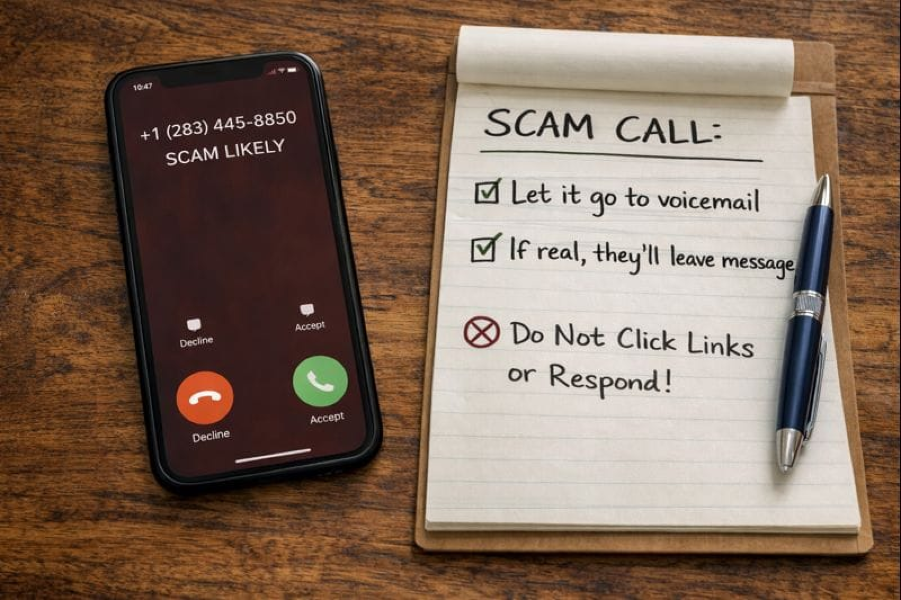
The safest way to handle scam calls and texts (simple routine)
Here’s the routine I recommend because it’s easy to remember and easy to stick to.
If you get a suspicious call
- Let it go to voicemail
- If it’s real, they’ll leave details
- If the voicemail says “urgent” but gives no clear info, it’s usually spam
If you get a suspicious text
- Don’t click anything
- Don’t reply
- Delete it
Important note
Even replying “STOP” can confirm your number is active. That’s why silence is your friend.
The most common scams I see right now
These are the ones that look the most believable, especially if you’re busy or distracted:
“Your package couldn’t be delivered”
They want you to click a link.
“Suspicious charge detected”
They want you to call a number that is not your bank.
“Your account is locked”
They want your login info.
“You owe money” or “Legal action”
They want fear to do the work for them.
Rule of thumb:
If it’s about money, always go through the official app or the official number on your card — never a random link or text number.
Quick wins that make a big difference
Add a simple voicemail greeting
A clear greeting encourages legitimate callers to leave a message and helps you feel confident ignoring unknown calls.
Create a contact called “Scam Likely”
When repeat numbers hit you, block them. It keeps your call history cleaner and your phone less annoying.
Turn on account alerts
For banks and credit cards, turn on:
- purchase alerts
- login alerts
- password change alerts
It’s like having a quiet little watchdog in the background.
If you still get flooded with spam, don’t panic
Sometimes your number is on an “active list,” and it takes a little consistency to slow it down.
A few common reasons:
- entering your number into online giveaways, quizzes, or pop-ups
- replying to a suspicious text even once
- answering repeated unknown calls (it tells them you’re a real person)
No shame. It happens. The fix is simply: stop feeding the system attention.
15 minute checklist (save this)
- iPhone: Turn on Silence Unknown Callers
- iPhone: Turn on Filter Unknown Senders
- Android: Turn on Caller ID and spam
- Android: Turn on Spam protection in Messages
- Let unknown calls go to voicemail
- Delete suspicious texts without replying
- For anything money-related, use the official app or the number on your card
A warm final note
If you’ve ever been tricked by a scam message, please don’t beat yourself up. These scams are designed to feel real. They catch smart people every day.
But you’re not powerless here.
A few settings, a few boundaries, and your phone starts working for you again — not against you.
And while you’re protecting your digital peace, keep doing the real-life stuff that supports you too. Take your walk. Drink your water. Eat the meals that help you feel strong. Flex your plant power and keep thriving beyond 60.

Disclaimer:
This content is for informational purposes only and is not medical advice. Always consult your healthcare provider before making changes to your diet, supplements, or lifestyle, especially if you have existing conditions or take medication.
💌Want plant-based tips each week
Join the Plant Based Flex newsletter. It’s free, and when you confirm your email I’ll send you a 7-Day Kickstart Wellness Bundle to help you thrive beyond 60.